Pattern Coloring Tool Window
Pattern Coloring Tool Window is used to define a set of rules that associate specific patterns or data ranges with coloring rules.
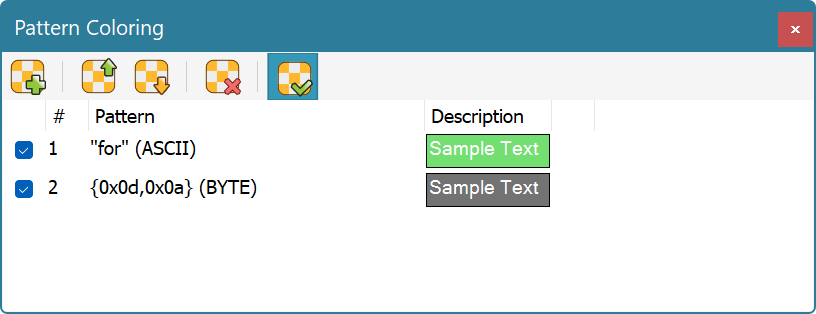
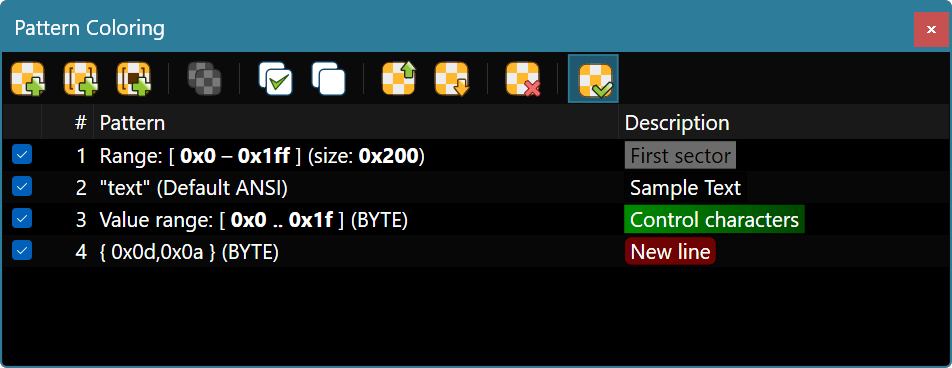
The Tools » Pattern Coloring » Enable Pattern Coloring switch is used to quickly disable or enable application of all defined coloring rules.
Creating and Editing Rules
Use the Tools » Pattern Coloring » New Pattern Rule…, Tools » Pattern Coloring » New Range Rule… and Tools » Pattern Coloring » New Value Range Rule… commands are used to create new rules, as described in the Pattern Coloring topic.
To edit a rule, double-click it in a list, or bring up the shortcut menu and choose the Edit Rule… option. Duplicate a selected rule using the Tools » Pattern Coloring » Duplicate Rule command.
To remove a rule, select it in a list and execute the Edit » Delete command.
You can re-arrange the rules using mouse or keyboard. Drag a rule to a new location with a mouse or hold Ctrl key to create a copy of a rule. Hold Alt and use the Up and Down keys to move a rule using a keyboard.
Select a rule and use Edit » Copy, Edit » Cut and Edit » Paste commands to copy or move rules using Clipboard.
Rule Schemes
All defined rules comprise the pattern coloring scheme. A scheme may be saved to a disk file and later loaded from it. To do it, execute Tools » Pattern Coloring » Save Scheme… or Tools » Pattern Coloring » Load Scheme… correspondingly. To delete all currently defined rules, execute the Tools » Pattern Coloring » Clear Coloring Scheme command.
Hex Editor Neo automatically saves all defined rules and restores them next time you launch the application.
Regular Expressions
The Pattern Coloring fully supports regular expressions. To search using regular expressions, select either “ASCII string (char[])” or “UNICODE string (wchar_t[])” pattern type, enter the regular expression, make sure the “Regular expression” checkbox is checked and enter the sub-expression number you want to search for. Sub-expression “0” represents the expression itself.
Take the following limitation into account:
- Complex regular expressions that start long before a visible area and/or end long after a visible are may not be highlighted.
Wildcard Patterns
Wildcard Patterns are fully supported by the pattern rule.